
Open your schedule
Sign in to your customer portal and open Schedule (or Upcoming visits) in the sidebar. You see every future cleaning your provider has booked for you, grouped by provider when you use more than one company.
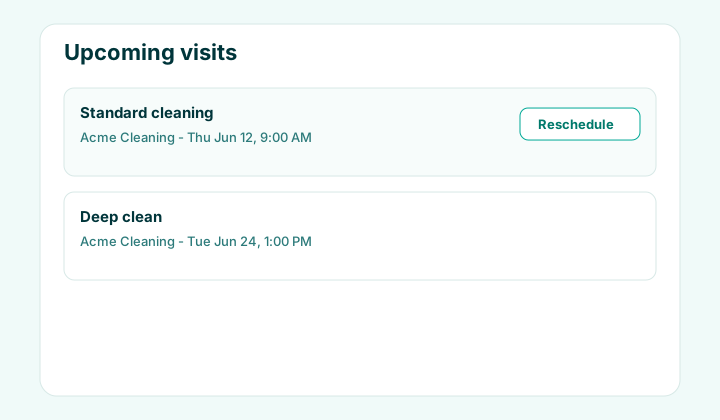
Request a reschedule
Tap Reschedule on a visit that has not started yet. Pick your preferred new date and time and add an optional note. Your provider receives the request in their workspace and confirms or follows up.
- You can request a reschedule only on scheduled visits that have not checked in yet.
- If a request is already pending, the visit shows a pending badge until staff responds.
- Your provider approves the change — the portal sends the request, not an automatic calendar move.
Completed visits and proof photos
Recent completed visits may appear below your upcoming list. On Pro plans where your provider enables it, you may see proof-of-service photos after a job is marked complete.
Need a change urgently? Send a message from Messages after submitting a reschedule request so the office team sees both.
FAQ
Why is Reschedule missing on a visit?
Reschedule is hidden after a visit starts, completes, or is canceled. Past visits cannot be moved from the portal.
How long until my new time is confirmed?
That depends on your provider. They review reschedule requests in their tenant workspace and update your visit when approved.